 . A new row will appear in the table.
  .
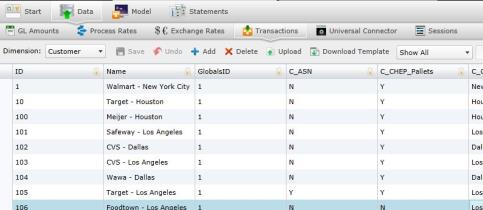
.The Transactions screen lists all transactions that take place internally or between your business and other businesses.
You can navigate to the Transactions screen by selecting "Data" on the Main Menu, then "Transactions."
To add a general ledger manually:
. A new row will appear in the table. .
To upload files:
 . A download pop-up screen will appear. Choose your options and select "OK."
 . The "Upload" panel will open. .
What if the records fail to upload?See Edit Failed Records.
Select  at any time to delete any changes you have made. Select
  to delete an entire process.
Transaction data filter:
PA5G displays the Transaction data Business Dimension wise, default selection is the Business Dimension that comes first alphabetically. User has the option to select any other Business Dimension from the drop-down located at the top left of the screen.
At the top centre, there is another filter option that further filters the data. The default option for this filter since the version 2014.1 is 'Show Time Period Specific'. Prior to 2014.1, the default option was 'Show All'.
Show Time Period Specific filter option:
This filter option is specific to Transaction data display. This is the default display option on navigation. It filters the UI display as per the Time Period specific driver values for the currently active Time Period. The default sorting of the records displayed is as per the primary key for that table but the user has the option to sort the data by other columns as well.
Impact on Download Template:
With this filter, user can now download Transaction data specific to the active Time Period. In addition, using other filters, such as name filters also gets reflected in the template downloads. The user can now download data with specific values for parameters defined in the filters for Transaction data. This feature to download filtered data into templates is unique to Business Dimensions Transaction Data.
Related Topics: