 to add new users, and
  to delete users. Be sure to save (
 ) new user information before exiting the screen.
The Users tab helps you manage users and groups who have access toPA5G. These screens will be prepopulated with user idea from the database if the data is present. If not, will need to manually add this data. leads to two component screens: Manage Users and Manage Groups.
In the actions ribbon: you can filter the users to view by selecting the drop-down menu, or choose one account to view by typing the user's name in the empty field and selecting "Search."
Use to add new users, and to delete users. Be sure to save () new user information before exiting the screen.
On the Manage Users screen, you will have the option to add, undo, or delete users. You can see all users at once, or select the users you would like to view by filtering.
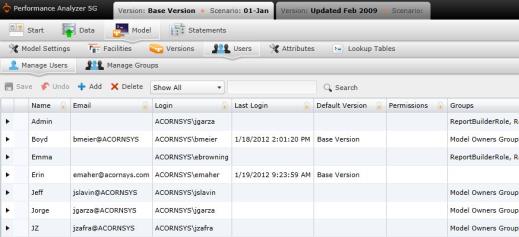
The User table is divided into the following columns:
On the Manage Groups screen, you will have the ability to assign users into different model groups depending on their roles within the company. For instance, if you have several users in your Finance department that only need access to viewing reports, you would create a group, and assign this group various permissions that only allow viewing the reports, without uploading data that may modify the report's outcome. After you have created this group, you can assign members.
Unlike the Users screen, you have the option to upload groups using a template. Select  and view the downloaded file to ensure the columns listing your group data are identical.
What if the records fail to upload?See Edit Failed Records.
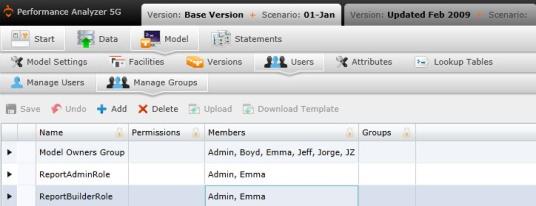
The table is divided into the following columns:
Related Topics: