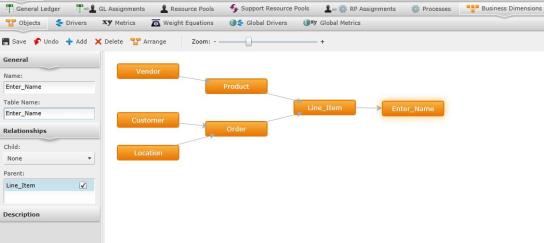
To begin defining business dimensions, it is recommended that you start by defining the model objects. You can navigate to the Objects screen by selecting "Objects" under Business Dimensions.
Look at the screen sample pictured below. Each orange box represents a cost object. Cost objects are defined as any entity in your business that creates costs. In most cases, cost objects are related to one another.
Example: The cost object "Product" is sold by the "Vender." If there was no product, what good is a vender? Because "Vender" relies on "Product" to exist, "Vender" and "Product" have a parent/child relationship. The arrows between the orange boxes indicate this relationship. "Vender" is the child of "Product," therefore, the arrow is pointing from "Vender" to "Product."
This screen will be pre-populated according th
Use this screen to create the model object flow by adding, deleting, and rearranging objects.
Select  .
.
A new orange box will appear in the right panel. In the left panel, type the name of your new object, and its name as it will be used in the table under "Table Name."
Use the scroll-down under "Child" to determine any objects that flow from the new object.
Select the arrow beside the objects listed in "Parent" to determine what objects flow to the new object.
Add a description for the object under "Description."
Select  . After the object has been saved, you have the ability to rearrange the model by selecting on the orange boxes, or by selecting
  . Select again to save any new object arrangements.
Use the Zoom tool to zoom in and out of the model.
Select  at any time to delete an object.
Related Topics: